Scanners and digital cameras create images using combinations of just three colors: Red, Green and Blue (called "RGB"). These are the primary colors of light, which computers use to display images on your screen. Printing presses print full color pictures using a different set of colors, the primary colors of pigment: Cyan (blue), Magenta (red), Yellow and Black (called "CMYK"). This is "4-color process" or "full-color" printing that comprises the majority of magazines and marketing materials you see every day. At some stage your RGB file must be translated to CMYK in order to print it on a printing press.
Which Programs are CMYK compatible?
Many graphics software programs give you the choice to work in either RGB or CMYK. These are called "color spaces". Here is a list of several common programs which allow you to work in the CMYK color space:
The following programs do not have the capability work in the CMYK color space. We will convert these from RGB to CMYK for you free of charge!
-
Adobe Photoshop Elements
-
Adobe Photoshop LE
-
Adobe PhotoDeluxe
-
Microsoft Word
-
Microsoft Excel
-
Microsoft Powerpoint
-
Microsoft Works
-
Microsoft PhotoDraw
-
Picture It Publishing
If you do not see your program listed here, or are having difficulty converting to the CMYK color space, please call us at 1-866-909-3003 for further assistance. We are happy to talk you through the steps needed to get your document into the CMYK color space.
RGB-to-CMYK Conversion
if you have your files(s) in RGB, you may want to convert them to CMYK for your own use so that you can see what the colors look like. Even though monitors always use RGB to display colors, the colors you see on your monitor will more closely match the final printed piece if you are viewing them in the CMYK color space. The range of colors that can be reproduced in any CMYK-only color (known in the trade as "Process Color") printing method is considerably smaller than the sRGB range of colors reproducible on a standard monitor.
When converting from RGB to CMYK in a program like PhotoShop, you should make sure that your CMYK color profile is not set to the usual default of SWOP v2. Not only is this very out of date, it doesn't accurately reflect what is really achie,vable on modern presses. The best CMYK color space for most purposes these days is Coated GRACol 2006, which is also an ISO standard. If you can change your CMYK color profile to GRACol or FOGRA39 you'll find you have considerably better choices, especially in the blue range. They're still nowhere near the full RGB gamut, but a definite advance on SWOP.
Be aware that it is possible to see colors in RGB that you can't make with CMYK. They are said to be "out of the CMYK color gamut". What happens is that the RGB-to-CMYK translator just gets as close as possible to the appearance of the original and that's as good as it can be. It's something that everyone in the industry puts up with. So it's best to select any colors you use for fonts or other design elements in your layout using CMYK definitions instead of RGB. That way, you will have a better idea of how they will appear in your printed piece. Here's a common example: many programs translate the 100% Blue in RGB into a somewhat purple-looking color in CMYK. We recommend a CMYK value of 100-65-0-0 to get a nice clean blue. Working in the CMYK color space allows you to select the CMYK recipe, or "screen build", that gives you the results you want.
Here are some examples of how various RGB colors convert to CMYK:
|

rgb colors
(what you see on screen)
|

cmyk colors
(printing inks will do this)
|
|

rgb colors
(what you see on screen)
|

cmyk colors
(printing inks will do this)
|
The color shift is more likely to happen for a rich, vibrant color. It probably won't look bad, it just won't look exactly the same. But it may not be noticeable at all either.
The ranges of RGB color that can't be reproduced exactly in CMYK are the relatively "pure" and saturated blues, huge chunks of green and yellow-green, and all the bright reds and oranges. Here is an illustrated example of a RGB Blue color converted to CMYK ... and when you convert the CMYK back to RGB, you can see that you get a different RGB value than you started with.
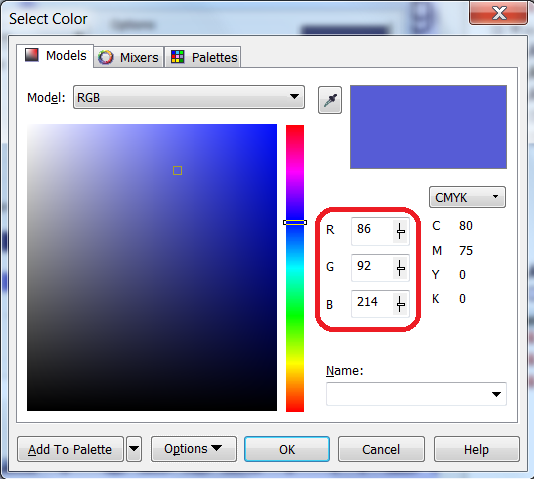
RGB Blue converted to CMYK
Here is what happens when you convert the CMYK blue color back to RGB. Note that you get a different value than the original RGB value.
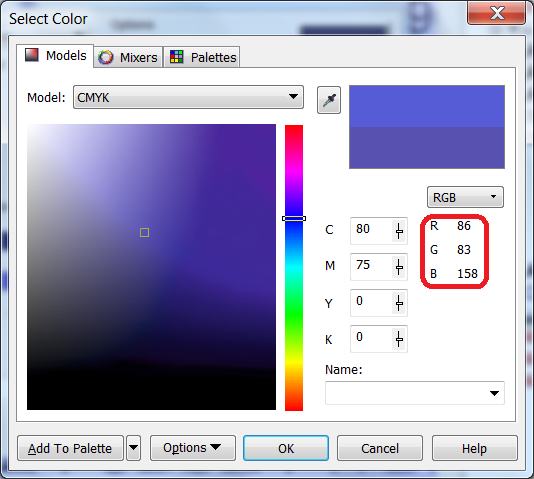
CMYK Blue converted back to RGB