

1. Place an Order (if not already done):
* We need to be able to match up your file submission with your order.
* You can place an order at Click HERE if you need to place an order
2. Click Here to Upload your 300 DPI .pdf files
If printing less than 50 books, our prices are posted. However, if you are ordering over 50 books, we will supply you with a quote because we offer quantity discounts (from 20-80%) with numerous options. We try to respond to all quote requests within 1 business day. Please use the comment and question sections for all questions and custom features.
If you are using Photobook Software please refer to our user guide for assistance, click here.
To download the Book Layout Checklist, click here
We require that our customers send us a single PDF file of the book content to ensure that we receive pages in the correct order and that all fonts and images have been properly included. However, it is common to work with programs (i.e. Photoshop, etc) which allow the customer to create a single JPG or PDF file for each page. These individual JPG and/or PDF files need to be finally combined into a single PDF file for printing the book content.
We have four recommended alternatives for combining multiple files into a single PDF file:
Option 1: Some programs have the ability to save your file as a single PDF file. Some of these programs are InDesign, Illustrator, MS Publisher 2007, MS Word 2007, etc. Earlier versions of MS Word or MS Publisher require a file conversion utility (see options below) to convert the file to a PDF file or install Microsoft's Compatability Pack.
Option 2: Download a free copy of PDFill PDF Tools(for PC Users only). When running PDFill you can Merge individual PDF files into a single PDF file as well as convert JPGs to PDF and PDFs to JPG. It will also allow other basic modifications to PDFs like rotate/crop, and adding page numners (using Add Header and Footer) among others.
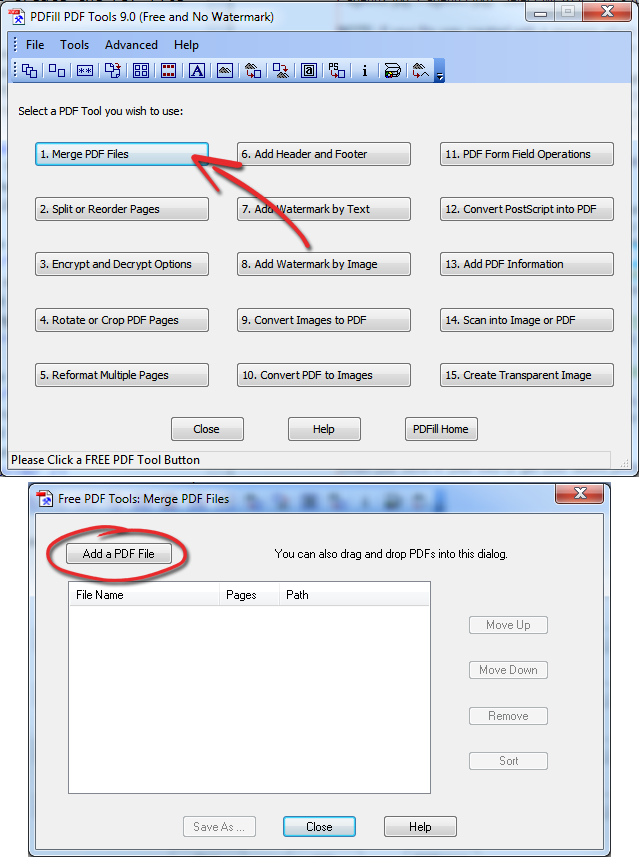
Option 3: If you have the Adobe Acrobat Pro program (not Acrobat Reader), you can use that program to combine individual files into a single PDF file and review it for accuracy. If you do not have this program you can download a free 30-day trial of this program (for PC users only). The function you would use for this is FILE/COMBINE/MERGE FILES INTO SINGLE PDF
Option 4: Get a free trial of Primo.pdf Creator (for PC Users only). After installing this utility, it will create a "Printer" called PrimoPDF. To use this utility, put all of the pages you wish to combine into a single folder, highlight the pages, right-click then select PRINT/PRIMOPDF. When running the PrimoPDF conversion and the process requests PDF Settings, select the Prepress Setting, which will give the highest quality images.
Option 5: Get a free trial of Combine PDFs (for MAC Users only). After installing the application, just drag and drop the files (PDF, JPG, GIF) in the order you want or let it default to alphabetic order if your files are named properly (e.g. Page001.jpg, Page002.jpg, Page003.jpg). Select MERGE PDFs to create the single PDF file.
Option 6: Visit PDFMerge.com (for PC & MAC Users) and use their free services to combine multiple PDF files into a single PDF file. (Please note this method only works with PDF files)
NOTE: If your file was created with a program which uses layers, please FLATTEN your 300 dpi .pdf and .Tiff files since they create huge file sizes and long uploads / downloads when you do not flatten.
We require that our customers send us a single PDF file of the book content to ensure that we receive pages in the correct order and that all fonts and images have been properly included. However, there are some programs which allow the customer to create their "book content file" but won't create a PDF file.
We have three recommended alternatives for creating a PDF file from these applications which don't create the PDF file directly:
Option 1: If you have the Adobe Acrobat Pro program (not Acrobat Reader), you can use that program to combine individual files into a single PDF file and review it for accuracy. If you do not have this program you can download a free 30-day trial of this program (for PC users only). The function you would use for this is FILE/CREATE PDF/FROM FILE
Option 2: Download a free copy of PDFill PDF Tools(for PC Users only). When running PDFill you can Merge individual PDF files into a single PDF file as well as convert JPGs to PDF and PDFs to JPG. It will also allow other basic modifications to PDFs like rotate/crop, and adding page numners (using Add Header and Footer) among others.
Option 3: Get a free trial of Primo.pdf Creator (for PC Users only). When running the PrimoPDF conversion and the process requests PDF Settings, select the Prepress Setting, which will give the highest quality resolution.
Option 4: Get a free trial of Adobe's Online Conversion Service.
Option 5: Visit ConvertOnlineFree.com to convert various file types to PDF including .doc & .jpg files.
NOTE: If your file was created with a program which uses layers, please FLATTEN your 300 dpi .pdf and .Tiff files since they create huge file sizes and long uploads / downloads when you do not flatten.
If you are using Photobook Software please refer to our user guide for assistance, click here.
To download the Book Layout Checklist, click here
We accept files in .pdf format only. If the file was created with a program using layers (e.g Photoshop, InDesign, etc.), then the file needs to be flattened before sending it to us.
It needs to be set up with the final page size desired. Our standard sizes are 8.5x11, 6x9 and 5.5x8.5. It is recommended that you use Margins of at least 1/2" on all sides plus an extra 1/4" on the binding side (inside) Use the Word option for Mirror Margins to be able to setup the inside/binding side margin larger than than the rest of the margins. Note that there is a 1/4" safe zone on all 4 sides of the page, so please don't put anything in this safe zone area so that no text will be cut off during the final book trimming process.
As far as fonts, the most common font and size used is Times New Roman, 12 pt. However, it is ultimately up to the author to select the font and size that they think best fits the book type and audience.
When the file is ready to be sent to UBuildABook, please "Save As" PDF file and send us the PDF file.
Note that there needs to be a separate cover file in addition to the inside content file.
For specific instructions on the document settings in Microsoft Word CLICK HERE.
If you are scanning an image/page, select the Scan as Grayscale option to ensure that the image will be saved without any color.
If you already have an image/page and want to ensure that the image/page will be saved without any color, you will need to convert it to Grayscale, a common option in image editing software. When converting an image/page to grayscale, all the color is replaced with shades of gray. Here are some common programs, and their options, which can be used to convert an image/page to grayscale:
Scanners and digital cameras create images using combinations of just three colors: Red, Green and Blue (called "RGB"). These are the primary colors of light, which computers use to display images on your screen. Printing presses print full color pictures using a different set of colors, the primary colors of pigment: Cyan (blue), Magenta (red), Yellow and Black (called "CMYK"). This is "4-color process" or "full-color" printing that comprises the majority of magazines and marketing materials you see every day. At some stage your RGB file must be translated to CMYK in order to print it on a printing press.
See our detailed write-up of potential conversion issues, from RGB to CMYK, if you want more information: RGB to CMYK Conversion
We use a Digital Printing Process, which allows us to be able print short-run book orders (from 1 to 1000 books) much more affordably and quicker than traditional offset printing presses which typically require orders of 1000+ books. Most customers don't know and don't care about how their materials wind up in a book. That's fine, we get paid to worry about that. But there are a few things that you should be aware of if your design requires high precision in the printing process.
We print most jobs at a high quality 300dpi press setting, however we are able to increase it to 600dpi (on request) for books that have images that require an even higher precision, typically for line art or architectural sketches.
Also, when you have a two-page spread, the precision of our equipment only allows us to be able guarantee a 1mm tolerance between the images lining up on the left and right pages. In addition, the making of our full bleed printed book covers have a 1mm tolerance on all sides, so symmetrical images (such as boxes) should not be closer than 1" to the edges of the front and back covers so that the cover does not look "off center".
Yes, for orders of 50 books or more we can design your cover for you. It is $100 for a simple cover including book title and a simple graphic. A more complex cover is $125 and up. Using the more complex cover option allows you to make suggestions for your cover and our designer will give you a quote for the cover design.
If you don’t have your own images and/or you are looking for new ones, check out public domain, royalty free graphics web sites or subscription graphics online services that charge a membership fee for unlimited graphics downloads.
Here are some helpful links:
A proof is an advanced copy of a book. We offer two forms of proofs - a standard proof or an e-proof. A standard proof is an actual book that is mailed to you. An e-proof is an e-mailed flipbook in low resolution and a PDF file, which contains the final formatting for your book. The reason for getting a proof is so typos and other errors can be caught and changed before the final production happens.
If you have changes after seeing your proofs please contact our design team at artwork@ubuildabook.com or call our Customer Service at (866) 909-3003.
In order to personalize your cover you will first need to contact Customer Service to make sure your order qualifies for personalization.
Next you will need to download our personalization template below:
 Download Personalization Template
Once you have downloaded the personalization template open it up in Excel or Google Sheets.
When opened you will see 2 tabs, 1 for Hard Cover books, and 1 for Soft Cover books. Make sure the names are added to the correct sheet, if you are only doing 1 type of cover (Hard or Soft) then you can delete the sheet you aren't using.

On each sheet there are 4 main columns(Line 1, Line 2, Line 3, Images) and instructions to the right of these columns.
Please read through the instructions and fill out the required fields. (Font Size, Font Type, Font Color, Location, etc.)
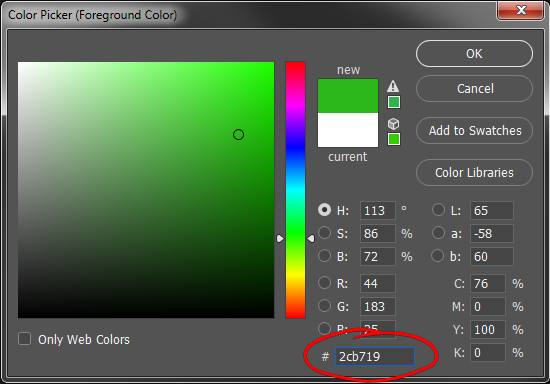
For the color field you will need to enter the RGB color or the HEX Code.
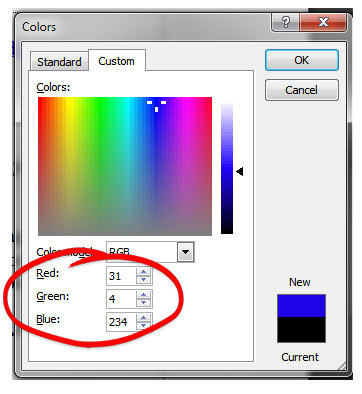
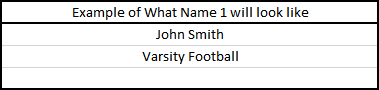
You can have up to 3 lines of text and 1 image(optional).
Each part of the personalization you want on a new line goes into the next column.
If you would like to include a photo personalization you will need to put all the images in a zip file and the files must have the following:
You will put the name of the file in the Image column in the row with the matching name.

If you look in the instructions section you can see an example that shows each line of text.
When you've finished filling out the template save it and then you can use the File Submission Form to upload it.
The use of ICC profiles are for Advanced Color Management requirements. See our ICC Profile Information page to get the ICC profile we typically use for our printers.
If you would like to use your students' or child's artwork to make full bleed cover or content here are a few tips.
If you would like the artwork to go to the edge of the cover, but the original artwork will be done on a standard 8.5x11 piece of paper here are a few things to keep in mind.
(This also applies to using an 11x17 to make a two-page spread)
• The background art should fill up the entire page so no white is showing.
• The foreground art should be 1.125" or more away from the edge of the page. Foreground art includes anything you do not want to be cut off
• The image should be scanned at more than 300 DPI to account for you scaling the image up to fill the bleed area. Images should be ~300 DPI when at the size you want them printed, so if you need to make the original image larger than the image should have higher resolution.
If you would like the artwork to go to the edge of the page, but the original artwork will be done on a standard 8.5x11 piece of paper here are a few things to keep in mind.
(This also applies to using an 11x17 to make a two-page spread)
• The background art should fill up the entire page so no white is showing.
• The foreground art should be .875" or more away from the edge of the page. Foreground art includes anything you do not want to be cut off
• The image should be scanned at more than 300 DPI to account for you scaling the image up to fill the bleed area. Images should be ~300 DPI when at the size you want them printed, so if you need to make the original image larger than the image should have higher resolution.
UBuildABook is not a publisher, therefore we don't share in any of your book profits. We are a printer. Since you will be self-publishing your book, you are considered the publisher.
We normally have a complete turnaround time in about 3-4 weeks. These 3-4 weeks takes the following into account:
See our information page for Copyright Registration.
See our information page for ISBN Number Registration and Barcodes.
Issued prior to publication, this free number is intended for books that will be distributed to libraries. The number is called the Preassigned Control Number (PCN) and may be requested by submitting a one-page application. For more information, guidelines about what books qualify, instructions and PCN forms, visit the Library of Congress.
Every item sold on Amazon Advantage needs a unique ISBN (International Standard Book Number). RR Bowker is the official agency in the US that assigns ISBN numbers to titles. Every version of every book has its own number. ISBNs can be purchased on Bowker’s web page in minimum blocks of ten ISBNs for $250. It comes out to $25.00 per ISBN. The trouble is if you have only one book, the remaining ISBNs are wasted. Here’s an unadvertised tip. You can get only one ISBN from Bowker for $125.
Once you have an ISBN, it must be converted into a scannable bar code that appears on each book. There is software for generating your own bar codes. Or you can purchase bar codes directly from Bowker (cost $25 per bar code) at the same time you are applying for ISBNs. There are other, less expensive, sources for bar codes, too.
This is the easy part of publishing in today’s world. There are many short-run, digital printers from which to choose. Some will print in ultra small quantities, ten or fewer copies. Some will even print one at a time. The unit cost of the short-run books is higher, but the total expenditure is less than a traditional print run of 1,000 or more.
With an ISBN and a bar code, you can apply to the Amazon Advantage Program. It costs $29.95 per year to join the program. You need to specify into which bank account your sales money is deposited. Amazon must first approve your title before you can send them any books. According to Amazon, the approval process for new titles can take several weeks. In some cases, however, it can be as fast as one week.
When your book is approved, you’ll receive your first order from Amazon via e-mail—typically two copies. Confirm your order via the Advantage website and ship the books to Amazon. Amazon advertises the book as “available in 2 weeks” until they get them into their system. Pack your books well to minimize damage from rough handling. Amazon reserves the right to return the books for the slightest damage. As copies sell, Amazon will send orders to replenish its inventory. Don’t be surprised if Amazon only orders one or two books at a time unless your book is a popular seller. Amazon is instituting sophisticated algorithms to anticipate how long it takes you to fill an order, how often they should order from you and whether you have seasonal sales spikes. It is advisable, therefore, to fulfill your orders quickly.
Scan the cover art and send it to Amazon. Amazon also has an option for them to scan the cover for you. It takes a few weeks for Amazon to scan the cover, but it may be fewer problems than if you send the scan yourself. If there is a problem with the scanned image you send, Amazon will not put it on the site and are unable to tell you what is wrong with the scan or how to correct it. Weigh the tradeoff of having your image available faster versus the potential problems if the scan is not done correctly for Amazon.
Amazon e-mails a statement each month summarizing how many books were sold and how much money was deposited into your bank account. The report is also available on the web. Amazon will mail a check instead of direct deposit, but there is an additional charge for this.
You can participate in Amazon’s “Search Inside the Book” program as an Advantage member. The entire contents of your book will be scanned and made searchable via Amazon’s search engine. The service is free. You must mail them one book that they will scan. This book cannot be returned to you because it is disassembled in the scanning process. There is some controversy among authors about this service. Some argue that it provides a potential reader with too much information. Others claim it helps sell more books. Since the service is free, there is little downside risk to scan the book.
This step is optional. It’s also free. Bowker allows you to register your book in its directory, “Books in Print.” This is the master list of all books available anywhere, which bookstores and libraries use. You must go to Bowker directly to register each of your titles. This is not done automatically when you apply for an ISBN.
The cost of the Amazon Advantage Program is high. They take 55% of the list price, leaving you only 45%. There is also a $29.95 annual membership fee. In addition, you pay the shipping costs to get the books there. If you have a $19.95 list price on your book, Amazon gets $10.97 and you get $8.98. Deduct from your $8.98 the cost of printing and the cost of shipping to determine your gross margin. The only good news in this equation is if Amazon decides to discount the price of the book to drive sales volume, the discount comes from Amazon’s portion of the revenue.
Book returns in the Advantage program are negligible. Compared to other distribution channels, this is a major advantage. Returns in the bookstore distribution channel may run as high as 40%-50% for some fiction titles. Non-fiction returns are typically less, but may still run 35%-30%.
Positive book reviews sell books. Ask satisfied readers to write a review on Amazon. Book review feedback on Amazon is almost as instantaneous as book sales figures. Book reviews are posted within five to seven days of being written. A five- or four-star rating on Amazon increases an author/publisher’s chances of selling more books because readers rely on reviewers’ opinions to help select among the myriad of title available on Amazon.
Since Advantage is a consignment program, you will be paid for the inventory after is has been purchased and shipped to Amazon.com customers. You'll be paid on a monthly basis, 30 days after the end of the month in which the unit is sold. The standard terms include a 55% Purchase Discount (off the List Price, which you set), member-paid shipping to our warehouse and a $29.95 Annual program membership fee. Complete terms and requirements can be reviewed during account creation.
If printing less than 50 books, our prices are posted. However, if you are ordering over 50 books, we will supply you with a quote because we offer quantity discounts (from 20-80%) with numerous options. We try to respond to all quote requests within 1 business day. Please use the comment and question sections for all questions and custom features.
We typically try to print in our standard books sizes - 6 x 9 (Portrait or Landscape), 8.5 x11 (Portrait or Landscape), 8.5 x 8.5 and 12 x 12 - as they are less expensive to print. But if needed, we are able to print custom sized books from 4 x 4 to 12 x 12 for orders of 50 or more books.
The term "page" is confusing since it can mean two different things when referring to double-sided printing: a page or a sheet. We count pages as the page numbers normally run. Each sheet in the book has two pages, one on each side; in fact, each sheet has two pages even if one of them is blank. There are twice as many pages as there are sheets. If the pages in a book are numbered from 1 to 250, then there are 250 pages in the book and 125 sheets. It's really confusing for us when you ask for a quote with a page description of "320 pages printed on both sides". To us that means 320 pages (160 sheets) and they are not blank on the back. If you mean 640 pages when you say this, we won't get your quote right for you.
When ordering 50 or more books, hardcover books typically cost $4.00 to $5.00 more than their softcover counterparts.
When ordering less than 50 books, our shipping rates are based on the size and type of book.
When ordering 50 or more books, our shipping rates are based on the standard UPS Ground rates and our packing and handling costs. We are generally able to estimate shipping costs, but wait until we pack and weigh the final order to determine the exact weight and shipping costs.
We are located in California, so we do not collect sales tax for any shipments outside of California.
For shipments within California, we charge 7.25% sales tax when applicable.
Sales Tax is applicable for all deliveries within California, unless the customer has a California Resale Certificate Form (click to download) on file with us.
For non-profits and religious organizations, the State of California states that "No general exemption is given for nonprofit and religious organizations. Although many nonprofit and religious organizations are exempt from federal and state income tax, there is no similar broad exemption from California sales and use tax. Generally, nonprofit groups' sales are taxable, as are their purchases. In other words, nonprofit and religious organizations, in general, are treated just like other California sellers and buyers for sales and use tax purposes." Click here to get a copy of California Publication 18, which provides more detail on this subject.
We have three easy ways to order and to send us your files.
To order:
UBuildABook
3075 East Thousand Oaks Blvd.
Thousand Oaks, CA 91362
To order school or military yearbooks:
Email To: yearbooks@ubuildabook.com
Fax To: 805-383-7272
Mail To:
UBuildABook
3075 East Thousand Oaks Blvd.
Thousand Oaks, CA 91362
We have several different types of paper that we use for the inside pages. We have a standard 80#gloss paper or a standard 70#Uncoated paper.
For orders of 50 or more books, we also offer a premium 100# Uncoated, Gloss or Silk paper option, an economy 60# Uncoated paper option and a recycled paper option.
As a standard, all of our books come with a Glossy Lamination. For orders over 50 books, we have a Matte Lamination option available.
The maximum amount of pages we can bind is up to 500 pages, depending on the thickness of the paper being used.
Our books are normally shipped via UPS Ground. We insure all of our shipments and securely pack the books so that they are well protected in transit.
We will typically keep our customer's files stored on our servers for at least two years.
Please contact us for pricing information for your reprint. Then simply fill out another order form and put a note in the comments section that it is a reprint order.
Our EZPay Yearbook Parent Ordering program is where we setup a webpage for assisting the school with collecting the parent payments for Yearbook Orders and/or Fundraiser Ad Sales. This is handled through our Yearbook Pro Software. The parent payments for yearbooks come directly to us since it uses our Visa/Master Card/Amex merchant accounts. We credit the amount collected towards the school’s total order. The school’s Yearbook Administrator is able to login to Yearbook Pro Online to get a recap of the money collected (when, who, how much, how paid, what ordered). For Fundraiser Ad Sales, the parent will be able to login and create their Ad Page (or ¼ page or ½ page or business card), depending on which options the school wants to offer.
For more details download our EZPay Overview and FAQ's for the School and FAQ's for the Parents.
Any questions not answered above can be sent to service@UBuildABook.com or can be asked over the phone at (866) 909-3003.
1. Place an Order (if not already done):
* We need to be able to match up your file submission with your order.
* You can place an order at Click HERE if you need to place an order
2. Click Here to Upload your 300 DPI .pdf files
We require that our customers send us a single PDF file of the book content to ensure that we receive pages in the correct order and that all fonts and images have been properly included. However, it is common to work with programs (i.e. Photoshop, etc) which allow the customer to create a single JPG or PDF file for each page. These individual JPG and/or PDF files need to be finally combined into a single PDF file for printing the book content.
We have four recommended alternatives for combining multiple files into a single PDF file:
Option 1: Some programs have the ability to save your file as a single PDF file. Some of these programs are InDesign, Illustrator, MS Publisher 2007, MS Word 2007, etc. Earlier versions of MS Word or MS Publisher require a file conversion utility (see options below) to convert the file to a PDF file or install Microsoft's Compatability Pack.
Option 2: Download a free copy of PDFill PDF Tools(for PC Users only). When running PDFill you can Merge individual PDF files into a single PDF file as well as convert JPGs to PDF and PDFs to JPG. It will also allow other basic modifications to PDFs like rotate/crop, and adding page numners (using Add Header and Footer) among others.
Option 3: If you have the Adobe Acrobat Pro program (not Acrobat Reader), you can use that program to combine individual files into a single PDF file and review it for accuracy. If you do not have this program you can download a free 30-day trial of this program (for PC users only). The function you would use for this is FILE/COMBINE/MERGE FILES INTO SINGLE PDF
Option 4: Get a free trial of Primo.pdf Creator (for PC Users only). After installing this utility, it will create a "Printer" called PrimoPDF. To use this utility, put all of the pages you wish to combine into a single folder, highlight the pages, right-click then select PRINT/PRIMOPDF. When running the PrimoPDF conversion and the process requests PDF Settings, select the Prepress Setting, which will give the highest quality images.
Option 5: Get a free trial of Combine PDFs (for MAC Users only). After installing the application, just drag and drop the files (PDF, JPG, GIF) in the order you want or let it default to alphabetic order if your files are named properly (e.g. Page001.jpg, Page002.jpg, Page003.jpg). Select MERGE PDFs to create the single PDF file.
Option 6: Visit PDFMerge.com (for PC & MAC Users) and use their free services to combine multiple PDF files into a single PDF file. (Please note this method only works with PDF files)
NOTE: If your file was created with a program which uses layers, please FLATTEN your 300 dpi .pdf and .Tiff files since they create huge file sizes and long uploads / downloads when you do not flatten.
We require that our customers send us a single PDF file of the book content to ensure that we receive pages in the correct order and that all fonts and images have been properly included. However, there are some programs which allow the customer to create their "book content file" but won't create a PDF file.
We have three recommended alternatives for creating a PDF file from these applications which don't create the PDF file directly:
Option 1: If you have the Adobe Acrobat Pro program (not Acrobat Reader), you can use that program to combine individual files into a single PDF file and review it for accuracy. If you do not have this program you can download a free 30-day trial of this program (for PC users only). The function you would use for this is FILE/CREATE PDF/FROM FILE
Option 2: Download a free copy of PDFill PDF Tools(for PC Users only). When running PDFill you can Merge individual PDF files into a single PDF file as well as convert JPGs to PDF and PDFs to JPG. It will also allow other basic modifications to PDFs like rotate/crop, and adding page numners (using Add Header and Footer) among others.
Option 3: Get a free trial of Primo.pdf Creator (for PC Users only).When running the PrimoPDF conversion and the process requests PDF Settings, select the Prepress Setting, which will give the highest quality resolution.
Option 4: Get a free trial of Adobe's Online Conversion Service.
Option 5: Visit ConvertOnlineFree.com to convert various file types to PDF including .doc & .jpg files.
NOTE: If your file was created with a program which uses layers, please FLATTEN your 300 dpi .pdf and .Tiff files since they create huge file sizes and long uploads / downloads when you do not flatten.
When you send in your files to get your books printed, you need to make sure that they are “print ready,”. This means that they are ready to be printed directly from your file, with no reformatting of pages or other changes. To be print ready, please be sure that your file abides by the following:
All files must be in PDF file format when submitting to UBuildABook. If you need assistance creating a PDF file, see our FAQ for different options to assist you
All images should have a resolution of at least 200 DPI for good printing and 300 DPI for best quality printing.
If you are working with JPEG or TIFF files, all pages should be LABELED in the order in which you would like them to appear in your book (e.g. Page001 Intro.jpg, Page002 TOC.jpg, etc.). Then you can combine the JPEG or TIFF files into a Single PDF file using a utility like Adobe Acrobat Pro (free 30-day trial available at the Adobe website).
If you want full bleed on the pages, please incorporate 0.25” page margins on all sides. Otherwise, the size of your pages should be the exact size of your book (i.e. if you want an 8.5 x 11 size book, your pages should be that size).
Your book cover design should incorporate a 0.75” bleed on three sides (top, bottom, outside edge). So, for an 8.5 x 11 book, the cover would be 9.25 x 12.5.
All hard copy photographs must be scanned in or must be in digital file format.
Once your order has been placed and your files have been successfully received you will receive an email notification stating that we have received your files.