Page Layout Using Adobe Photoshop
Some options may vary depending on what version of Photoshop you are using.
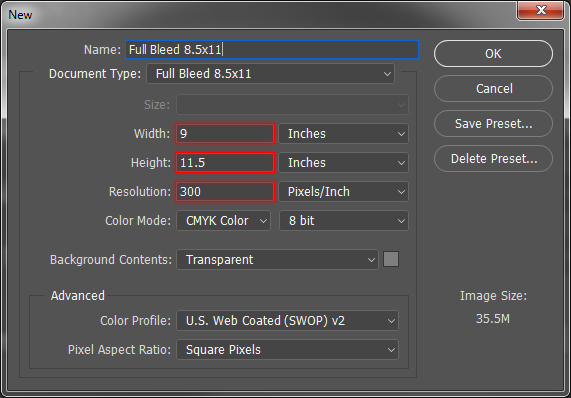
- When starting a new document set the width and height to match your book size for a no bleed book. For a full bleed book set the width and height to .5" larger than your books size(.25" for each side). If your book is 8.5x11 then you will enter 9x11.5. The resolution should be at 300 DPI.
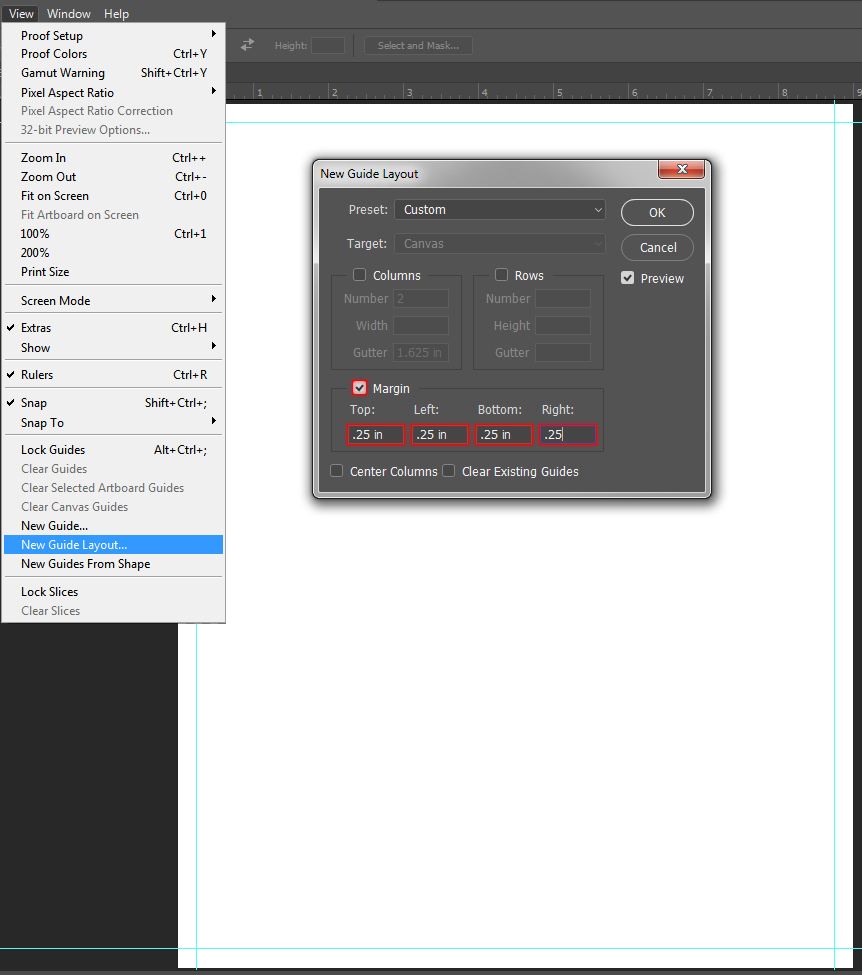
- Once your document is created, go to the View menu and select New Guide Layout.... To add guides for the bleed click on the Margin check box and enter .25" on all 4 sides.
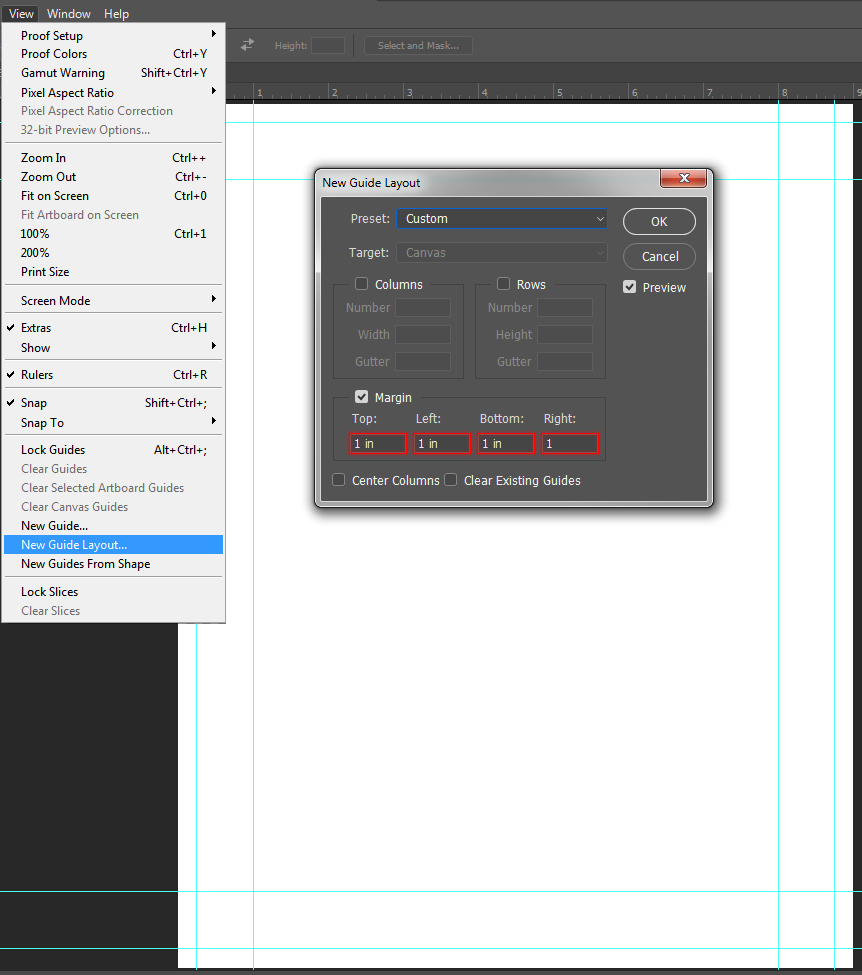
- Now to add the margin guides. go back to the New Guide Layout window. For no bleed books, set the margins to the size you would like to make the margins (.375" minimum, .75"+ recommended). For full bleed books add the bleed (.25") to your margin size. If the margins are .75", then set them to 1".