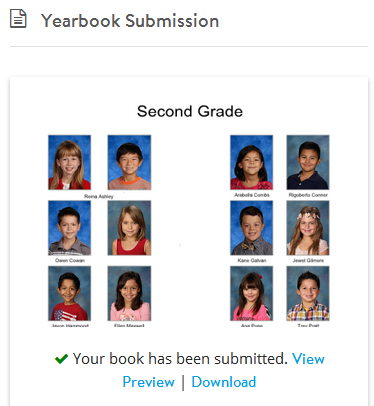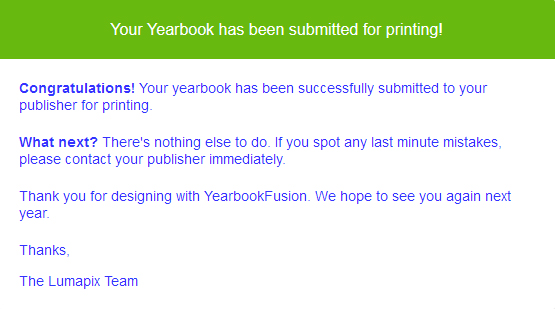


Open your book in Yearbook Fusion and navigate to the Admin tab. From the Admin tab you will see two Create Proof buttons, Under Yearbook Submission click on Create Proof (Click here if you need to find the Admin Tab again) You will receive a report letting you know about key issues your content might have. Just like with your cover, Yearbook Fusion will begin processing your content. Once your content is processed you will receive a conformation email. You will see a conformation window asking you to verify if your content is ready to submit. Unlike with the cover you will see a window that says Please close this window to continue. Once your content is finalized you will receive a conformation email.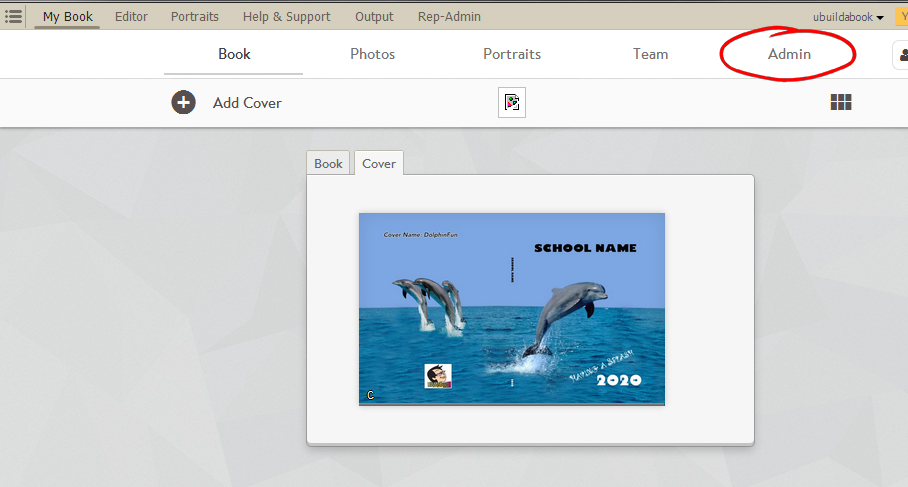
the left one for the content and the right one for the cover.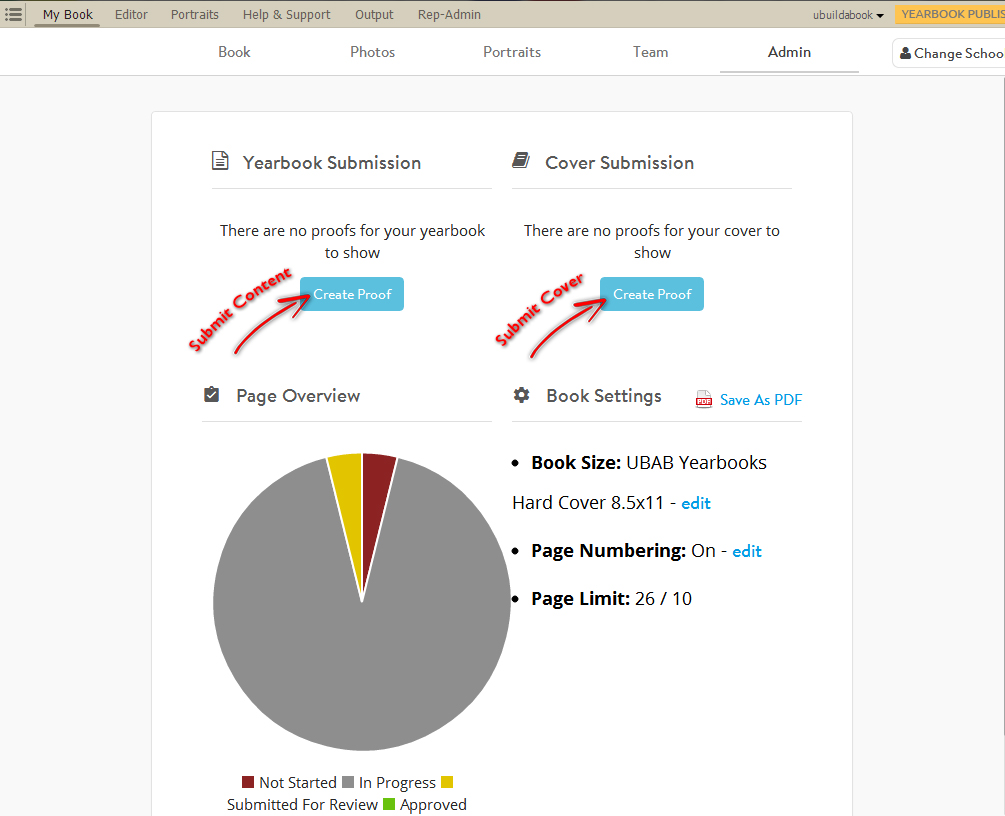
Submitting Content
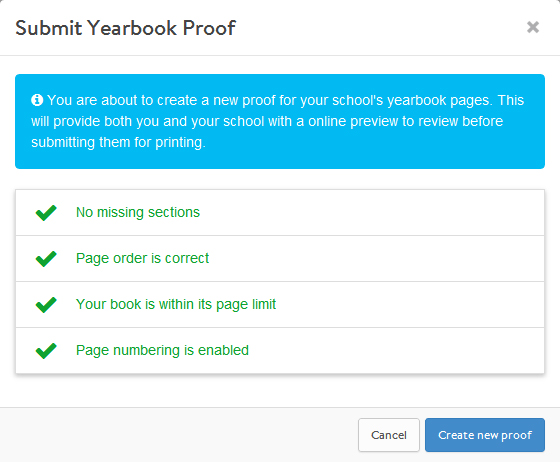
Click on Create new proof to proceed.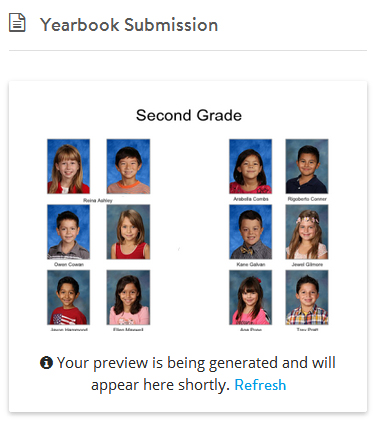
Just like with the cover, this is not a proof.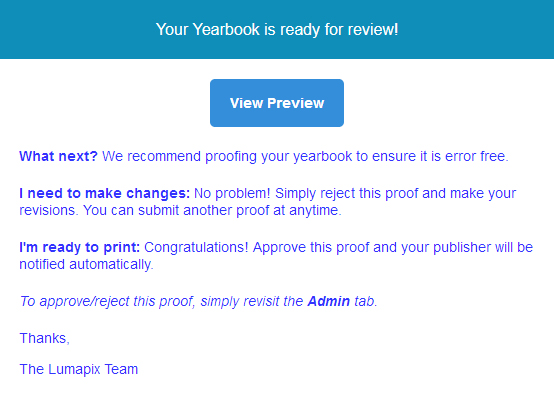
You will receive an eProof or Bound proof depending on your order.
Once your receive the proof you can review it for errors.
If you need to make changes you will click on the red Reject Proof button on on the Admin tab.
If your cover is approved for printing you will click on the green Submit Cover button.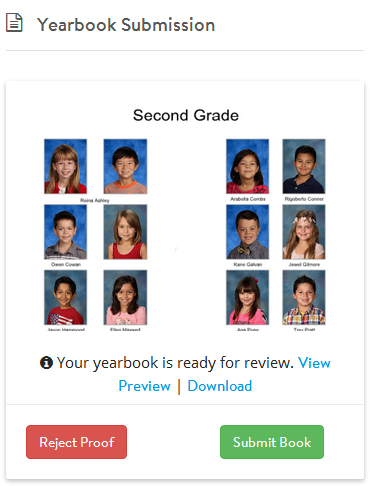
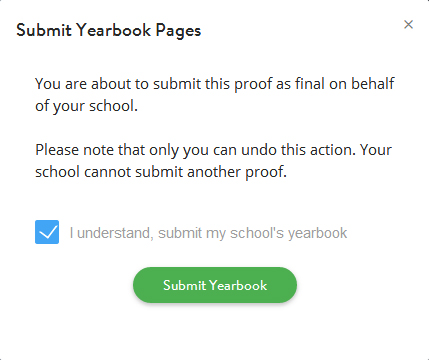
When you click on the check box and the green button your cover will be finalized.
Click on the white X in the top right corner to proceed.